How to choose (avoid mix-ups)
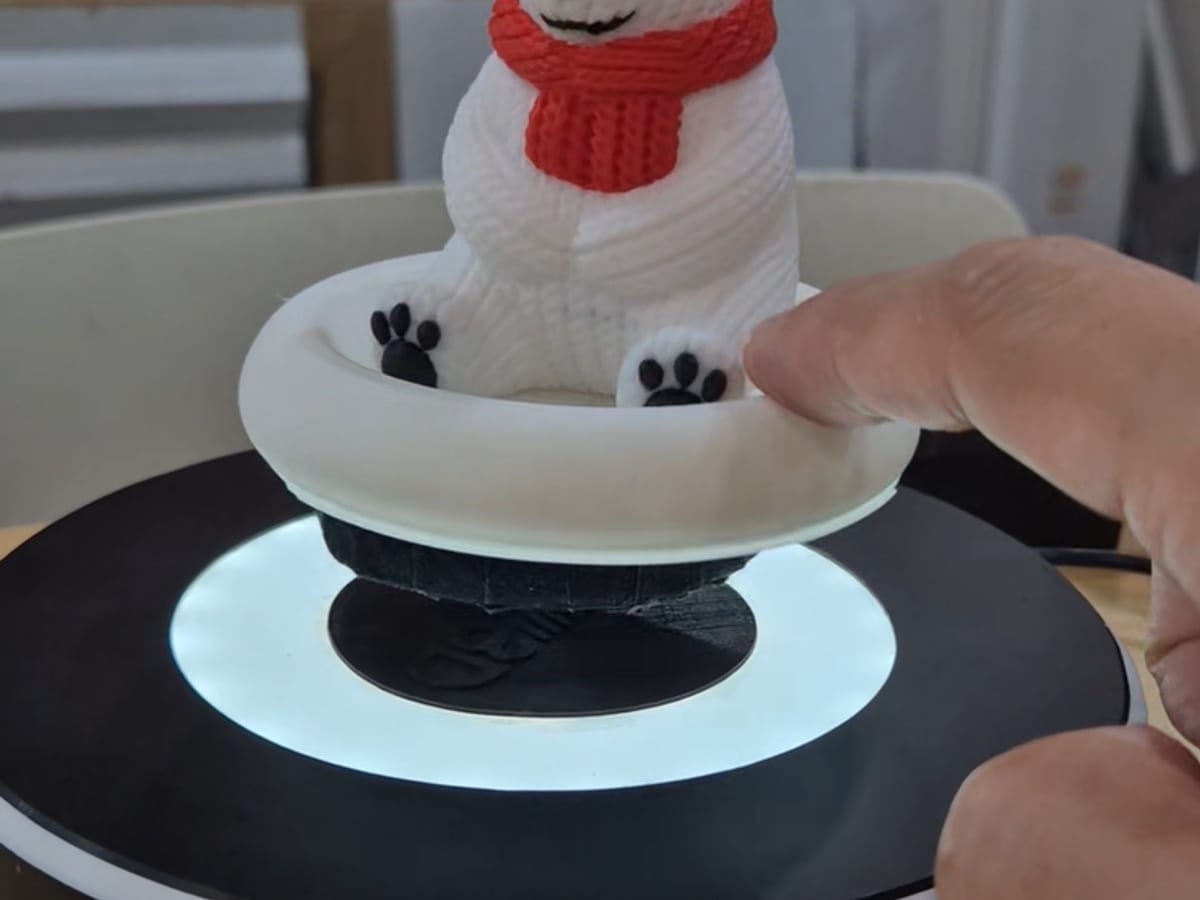
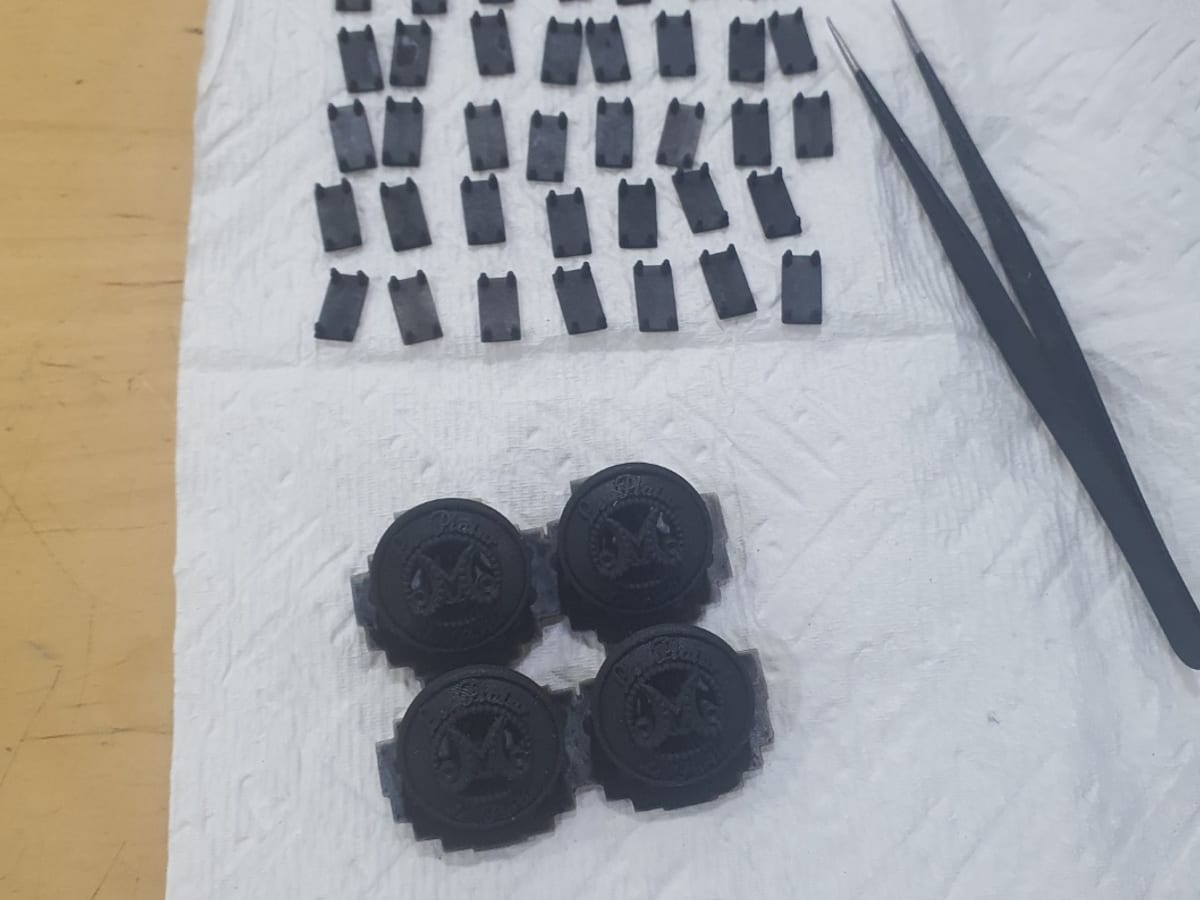
Use Name Tag Studio (/maker) for name tags, ID tags, badges and desk plates with typed text. Use AI 3D Maker (/maker?mode=draw) for company logos, SVG/PNG marks and hand sketches on badge or keycap plates. Use photo → AI 3D quote (/quote?entry=photo) for curved solid meshes from product or figure photos. Use text → AI CAD (/ai-cad) for mechanical parts you can describe with dimensions. All four can reach STL/quote, but the input differs.
Name Tag vs AI 3D Maker
Name Tag is keyboard text, fonts, lines and holes. Maker is image upload, pen sketch, badge/keycap templates, logo placement and extrusion in mm. If the content is “Hong Gildong” typed in, use Name Tag; if it is a logo file, use Maker. Both make flat 2.5D plates, so results can look similar even though editing differs.
Open the tool
Name Tag Studio is the default on /maker. Switch to AI 3D Maker when you need a logo or sketch extrusion. From Maker, use the top Name Tag Studio button to return to text tags.
Text and fonts
Set font, size, alignment and letter spacing per line. Bold recommended fonts print more reliably than thin scripts.
Plate, hole, emboss/engrave
Choose rounded rectangle, capsule, circle, letter outline and hole placement, plus emboss or engrave. Preview colours are for design only; pick print colour with the material at quote time.
Printability checks
Warnings appear for strokes under 0.8 mm or text outside the plate. Fix with a bolder font or larger plate before requesting a quote.
STL and order
Save STL or request a quote to load the model into the live quote, then pick material and options. After confirmation, typical receipt is about 3–7 days.