Photo → AI 3D

From a single photo
to a 3D printing quote

Even without STL or STEP files, you can upload a product or figurine photo (JPG/PNG), generate an AI 3D model, then get an auto quote and place a print order — all on WOW3D. Best for shape checks and prototypes; for tight dimensional or assembly tolerances, upload a CAD file instead.

How it works

  1. 1

    Sign in · upload photo

    In auto quote, choose “I don’t have a 3D model.” Upload a front JPG/PNG with the object large and centered; add right, back, and left views when you can.

  2. 2

    AI 3D model generation

    AI analyzes the photo and builds a 3D mesh (STL). When ready, review shape and size in the 3D viewer.

  3. 3

    Auto quote · pick options

    Choose FDM, SLA, or DLP, material, layer height, and infill — volume, time, and price update live.

  4. 4

    Order · 3D print

    If the quote looks right, continue to cart and order for actual 3D printing.

Photo → AI 3D → print

Examples of going from a product photo to an AI 3D model, then auto quote and 3D printing.

피규어 · 캐릭터 형상 확인 (사진→3D) original photo — input for photo-to-AI 3D
Source photo
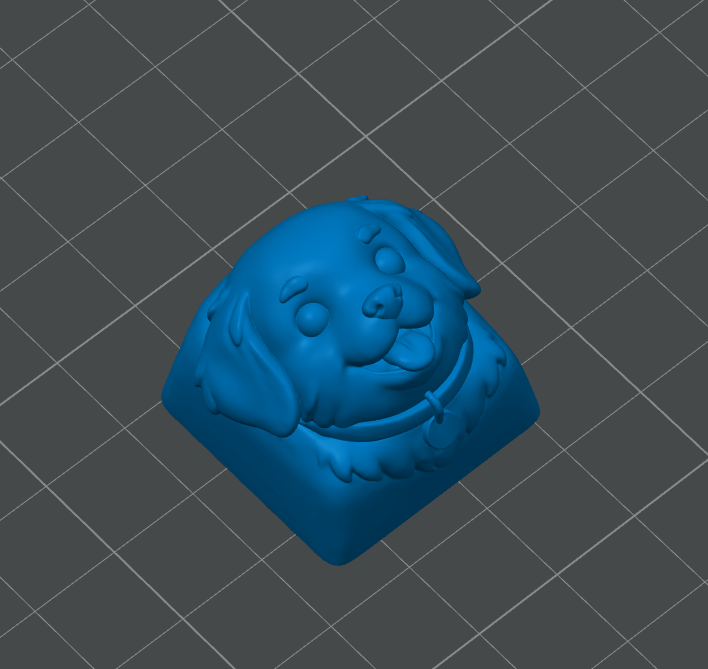
피규어 · 캐릭터 형상 확인 (사진→3D) AI 3D and 3D print result
AI 3D · print

피규어 · 캐릭터 형상 확인 (사진→3D)

단색 배경 캐릭터 사진에서 입체 메시를 생성한 뒤 SLA/DLP로 키캡·피규어 외관 시제품을 출력하는 흐름 예시입니다.

SLA · Standard Resin

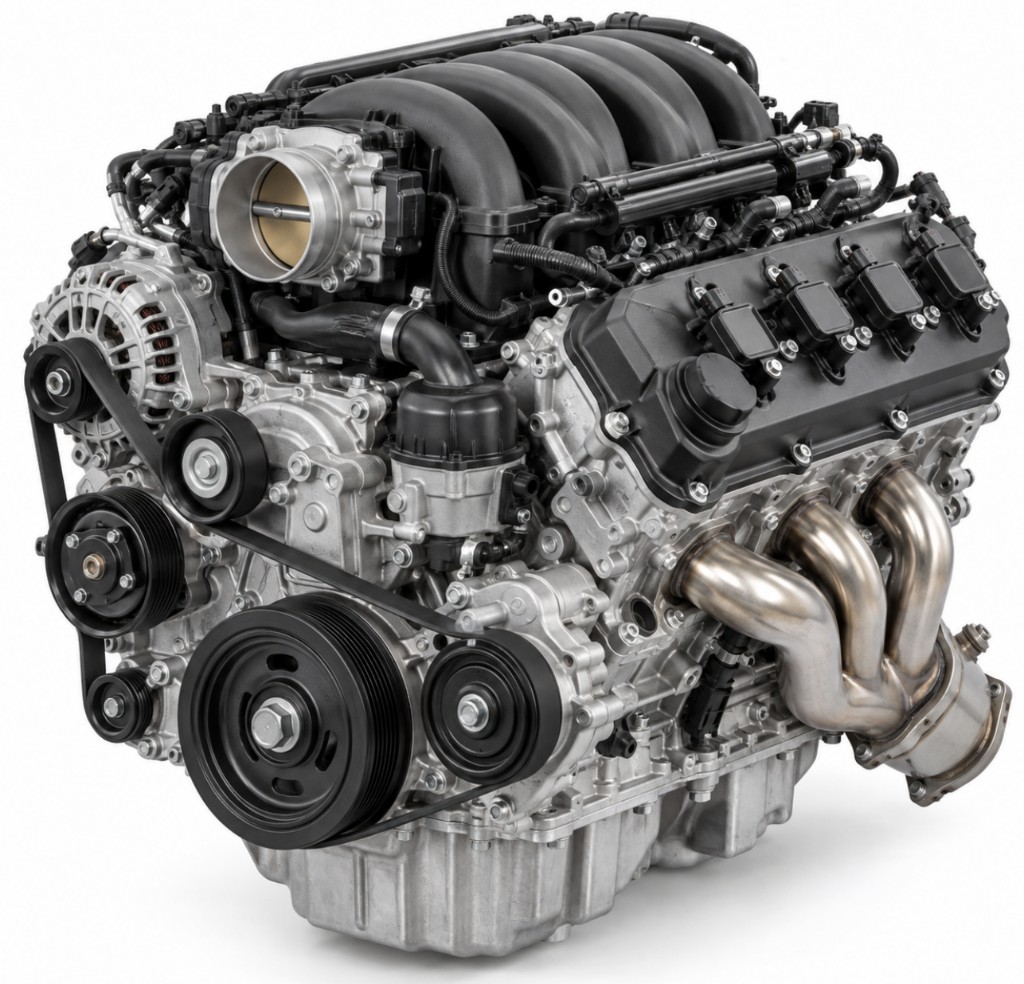
시제품 · 부품 외관 검증 (사진→3D) original photo — input for photo-to-AI 3D
Source photo
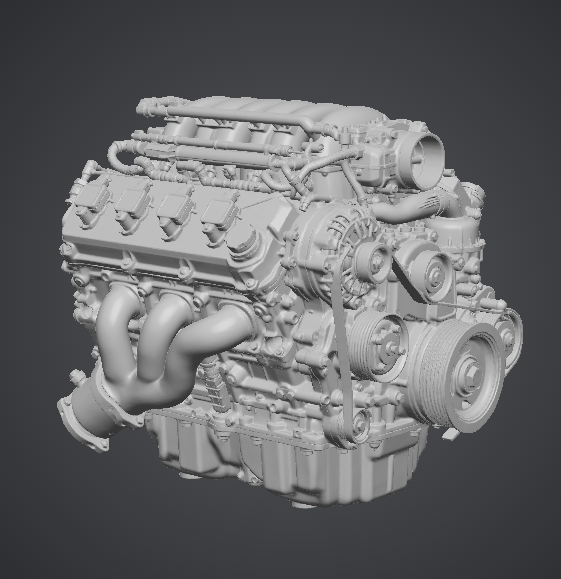
시제품 · 부품 외관 검증 (사진→3D) AI 3D and 3D print result
AI 3D · print

시제품 · 부품 외관 검증 (사진→3D)

실물·레퍼런스 사진으로 형상을 빠르게 확인하고 FDM 견적·출력까지 이어지는 사례 유형입니다.

FDM · PLA

Shooting checklist

Photo rules at a glance

Multiple parts in one shot often merge into one messy mesh or thin fragments. Follow the four rules below for much better conversion and print quality.

① Mỗi ảnh một vật thể

Tránh
Nhiều bộ phận chung
Tốt
Một vật thể ở giữa

Tip · Nhiều bộ phận trong một ảnh thường bị gộp thành một lưới hoặc tạo mảnh mỏng. Hãy chụp riêng từng bộ phận.

② Giữ nền đơn giản

Tránh
Lộn xộn / tay
Tốt
Nền trơn sáng

Tip · Tay, dụng cụ hoặc vân bàn có thể trở thành một phần của lưới. Dùng giấy trắng hoặc tường trơn.

③ Chụp trọn vật thể

Tránh
Bị cắt / cận cảnh quá mức
Tốt
Chiếm 60–80% khung hình

Tip · Mép bị cắt thường tạo lỗ hoặc làm méo mặt. Để lề và cho vật thể chiếm khoảng 60–80% khung hình.

④ Sáng và nét

Tránh
Tối / mờ
Tốt
Ánh sáng đều, sáng

Tip · Ảnh tối hoặc mờ làm mất đường viền. Dùng ánh sáng cửa sổ hoặc đèn vòng đều, lấy nét kỹ và tránh bóng gắt.

Good photo examples

  • Object large and centered
  • Plain, bright background
  • Front or slight angle
  • One object per shot

Photos to avoid

  • Multiple objects in one shot
  • Busy background, hands, clutter
  • Too dark or blurry
  • Extreme close-up or cropped

AI 3D Maker vs photo → AI 3D quote

WOW3D offers a 2.5D Maker for sketches and logos, and a separate photo-based 3D quote flow. Pick the one that matches your goal.

AspectAI 3D MakerPhoto → AI 3D quote
InputSketch / logo PNGProduct or figurine photo
Result2.5D extruded meshFull 3D STL
Quote linkSave STL, then upload on quoteAuto quote right after generation
Best forLogos, signs, simple silhouettesPrototypes and figurine shape checks

FAQ

Can I turn a photo into a 3D model?

Yes. On WOW3D, upload a JPG or PNG product photo and AI converts it to a 3D model (STL), then you can continue to auto quote and print order. In auto quote, choose “I don’t have a 3D model” and upload a front photo.

Can I get a 3D printing quote without a 3D file?

Yes. In WOW3D auto quote, choose “I don’t have a 3D model,” upload a JPG or PNG product photo, and AI builds a 3D mesh (STL) before volume and price quoting.

What photos work best for photo-to-3D modeling?

Prefer an object large and centered, a plain bright background, one object per shot, and low shadow or glare. Adding right, back, and left views can improve shape accuracy.

Can I order a print from an AI-generated 3D model?

Yes. Use the generated STL for auto quote (material, layer, infill), then continue to cart and order in one flow.

Should I use photo → 3D or upload CAD/STL?

If assembly tolerances and precise dimensions matter, upload STL or STEP. For shape checks, prototypes, and figurine ideas, photo AI 3D is a good fit.

How many photo → AI 3D runs per day?

One run per signed-in account per day (Korea time). Failed generations do not count against the limit.

How is AI 3D Maker different from photo → AI 3D quote?

AI 3D Maker is for 2.5D extrusion from sketch or logo PNGs. Photo → AI 3D quote builds a full mesh from a real photo, then goes straight to print quote and order.

What photo formats and sizes are supported?

JPG and PNG up to 8MB. Results are STL for the 3D viewer and auto quote.
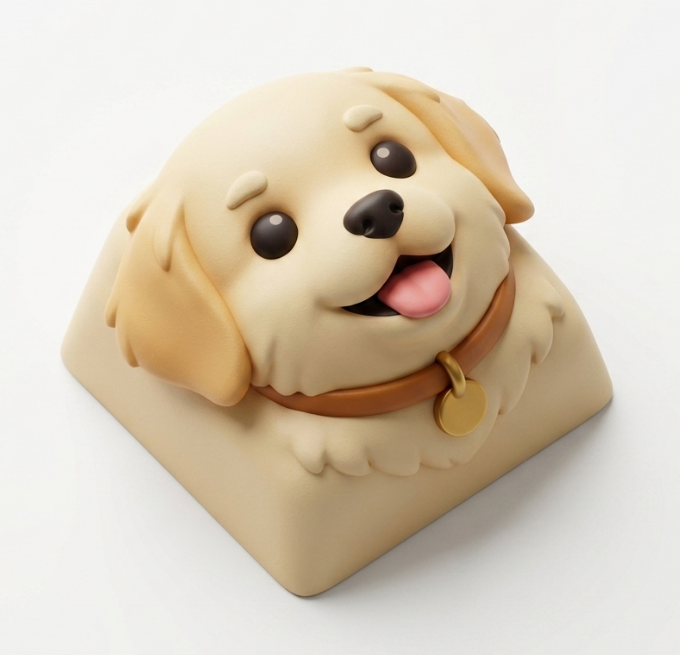
Photo to 3D Quote

Get a 3D printing quote from a photo

Sign in, upload a product photo, and AI 3D generation continues into auto quote. One run per day (Korea time).