When to use it
Best for planar silhouettes with thickness—logos, badges, keycaps. For solid meshes from product photos, use photo → AI 3D quote.
AI 3D Maker Guide
Turn logos, sketches and SVGs into silhouette 2.5D, combine badge or keycap templates and layers, then save STL or continue to a live quote.
Quick answer
AI 3D Maker (/maker?mode=draw) extrudes logo, sketch and SVG silhouettes in 2.5D, combines badge or keycap templates and layers, then continues to STL or a live quote. Use photo → AI 3D for solid product meshes and Name Tag Studio for text-first tags.
By Seo Jeongju, CEO of WOW3DLast updated
Best for planar silhouettes with thickness—logos, badges, keycaps. For solid meshes from product photos, use photo → AI 3D quote.
White background with black lines (PNG/JPEG) or SVG looks sharpest. Colour photos and gradients can become a solid blob—try logo mode and background removal.
Pick round or square badge or 1U keycap templates, then set base, logo extrusion, rim thickness (mm) and bevel. Magnet, pin and MX stem mounts are available.
Check size and placement in the 3D result, then save STL or request a quote. After ordering, typical receipt is about 3–7 days.
Real Output
Parts we printed in-house on FDM, SLA and DLP machines. See more in the print gallery.
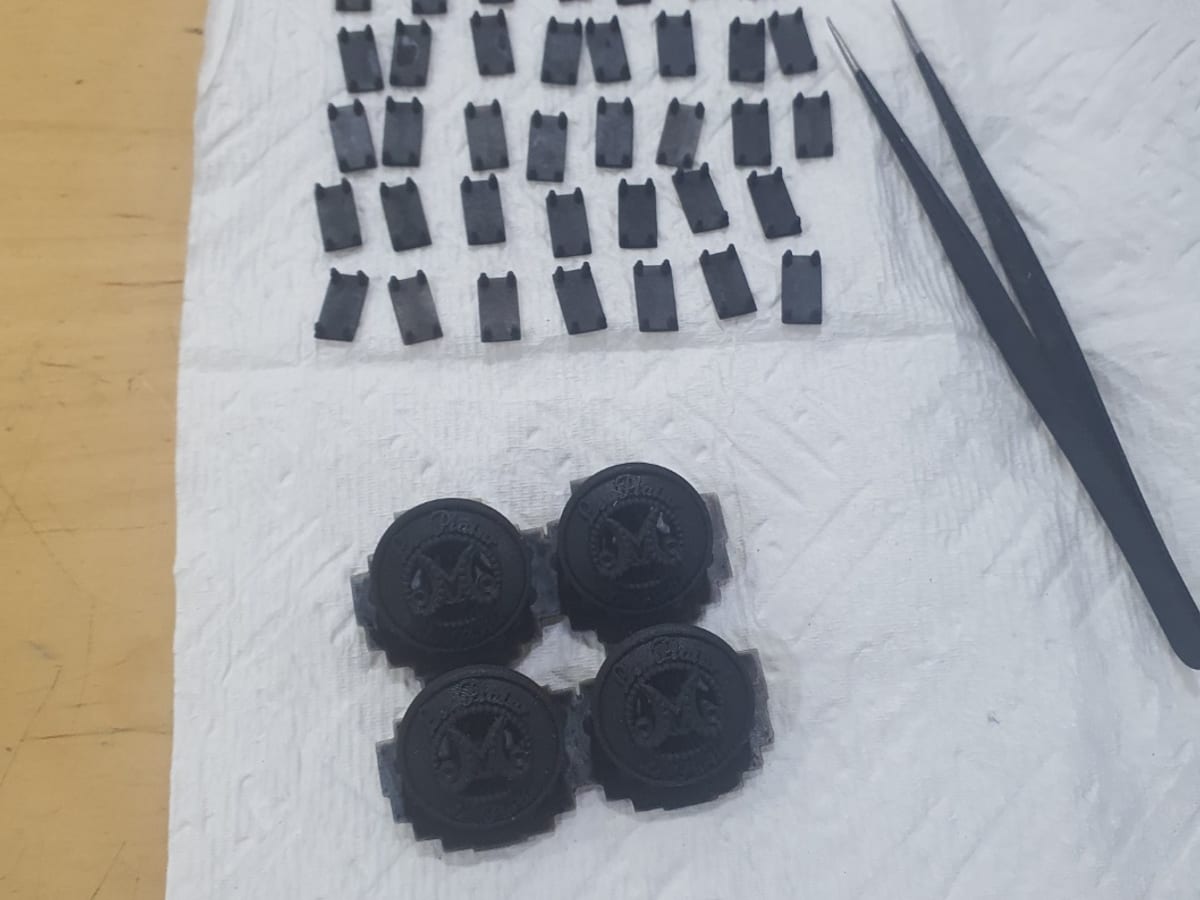
Garment buttons and jig
DLP · Black resin
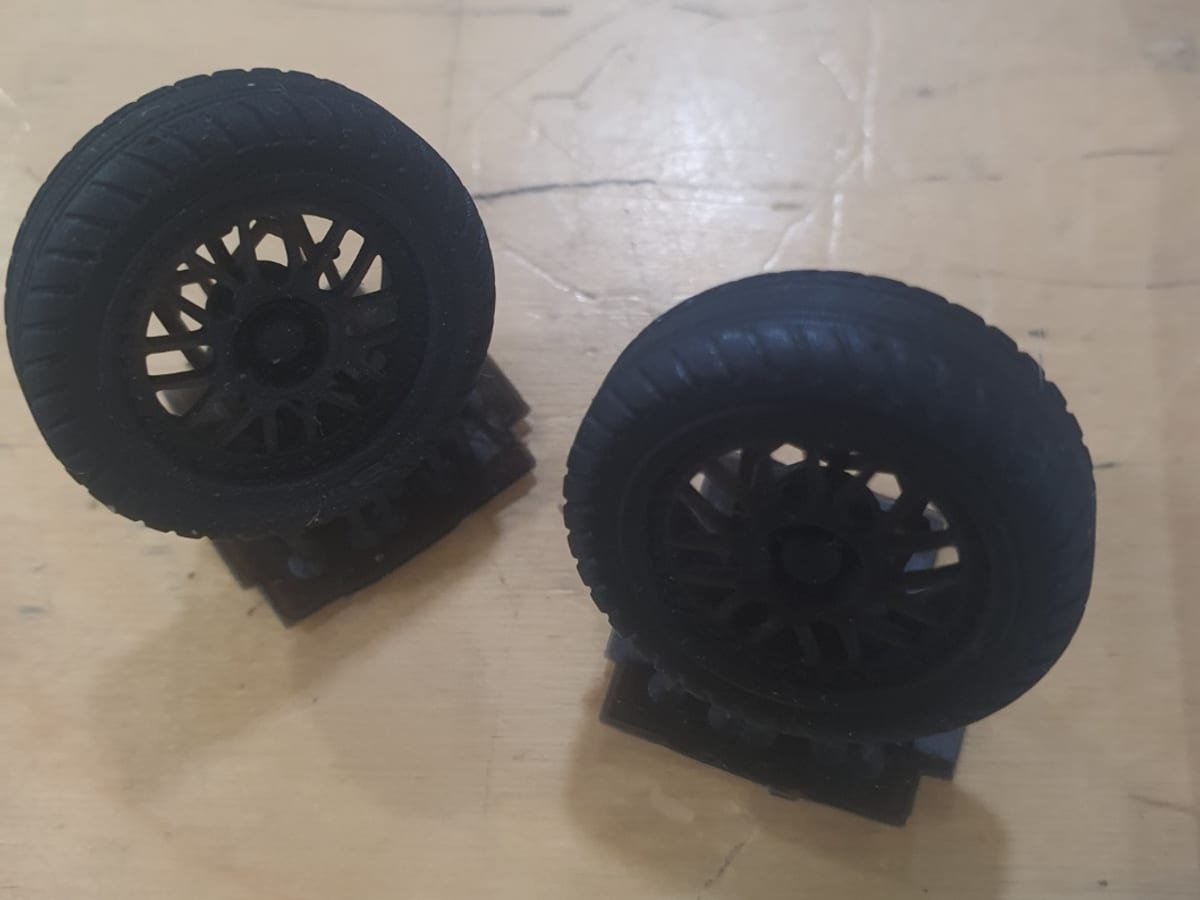
Scale model car tires
DLP · Flexible resin
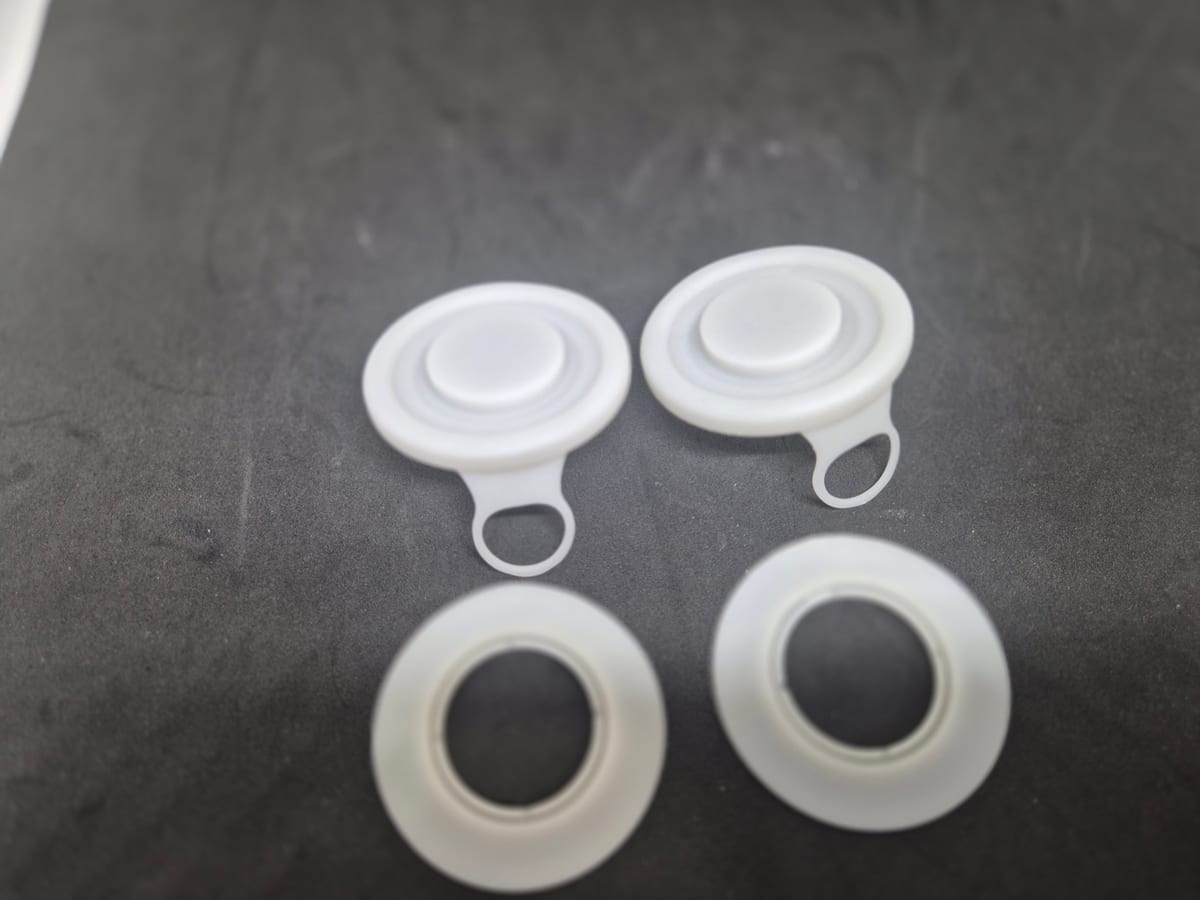
Bottle cap prototype
DLP · White resin
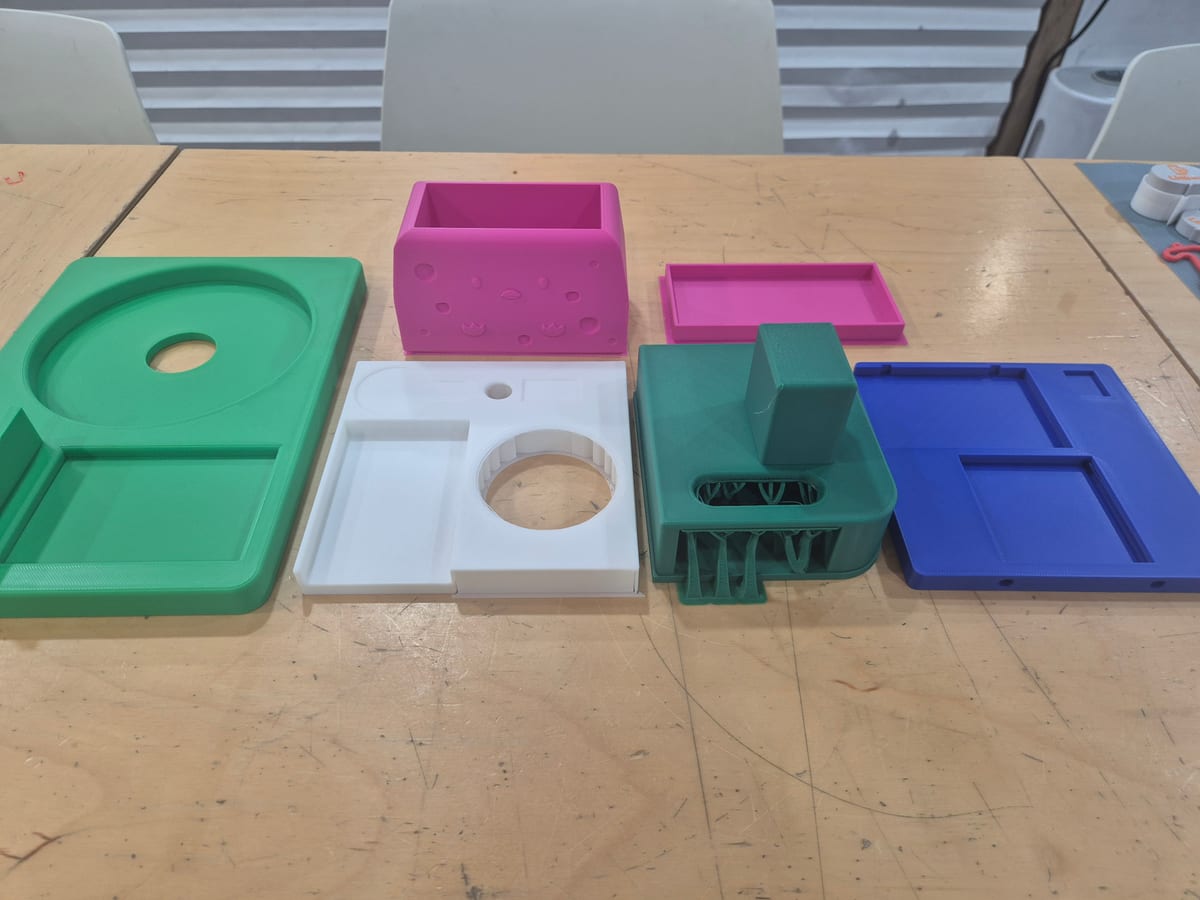
Arduino product enclosure
FDM · PLA
Maker is for sketch/logo 2.5D extrusion. Photo → AI 3D builds a solid mesh from real photos and continues to quote and order.
The 1U keycap template uses an 18 mm Cherry MX 1U baseline; you can change the side length within the allowed range.