What inputs work best for AI 3D Maker?
High-contrast text, logos and icons, or SVG, look sharpest. Colour photos and gradients can become a solid blob—prefer white background with black lines.
AI 3D Maker
Turn logos, sketches and SVGs into silhouette 2.5D extrusions, combine badge or keycap templates and layers, then save STL or continue to a live quote on WOW3D AI 3D Maker.
Quick answer
AI 3D Maker extrudes logo, sketch and SVG silhouettes in 2.5D, combines badge or keycap templates and layers, then continues to STL or a live quote. Use photo → AI 3D for solid product meshes and Name Tag Studio for text-first tags.
Real Output
Parts we printed in-house on FDM, SLA and DLP machines. See more in the print gallery.
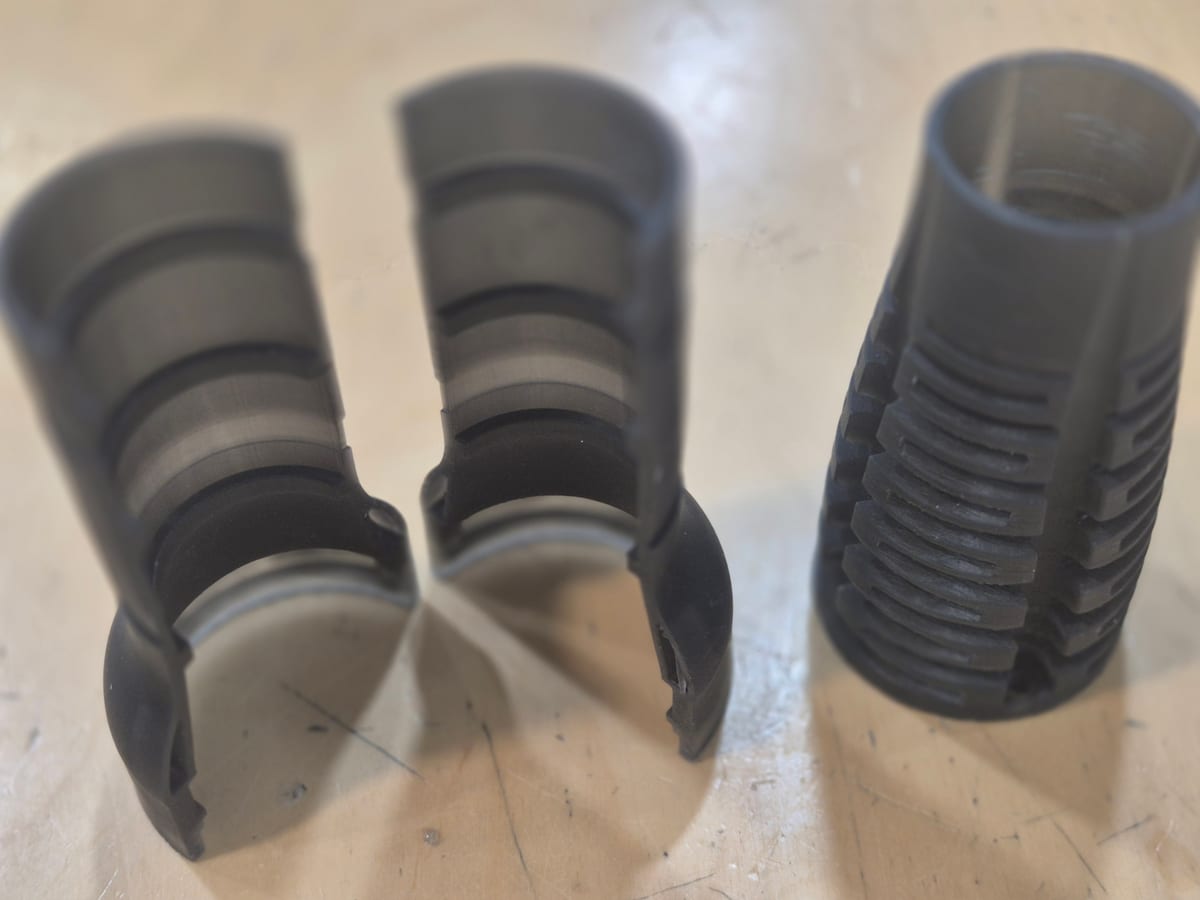
Flexible resin mechanism
DLP · Flexible resin
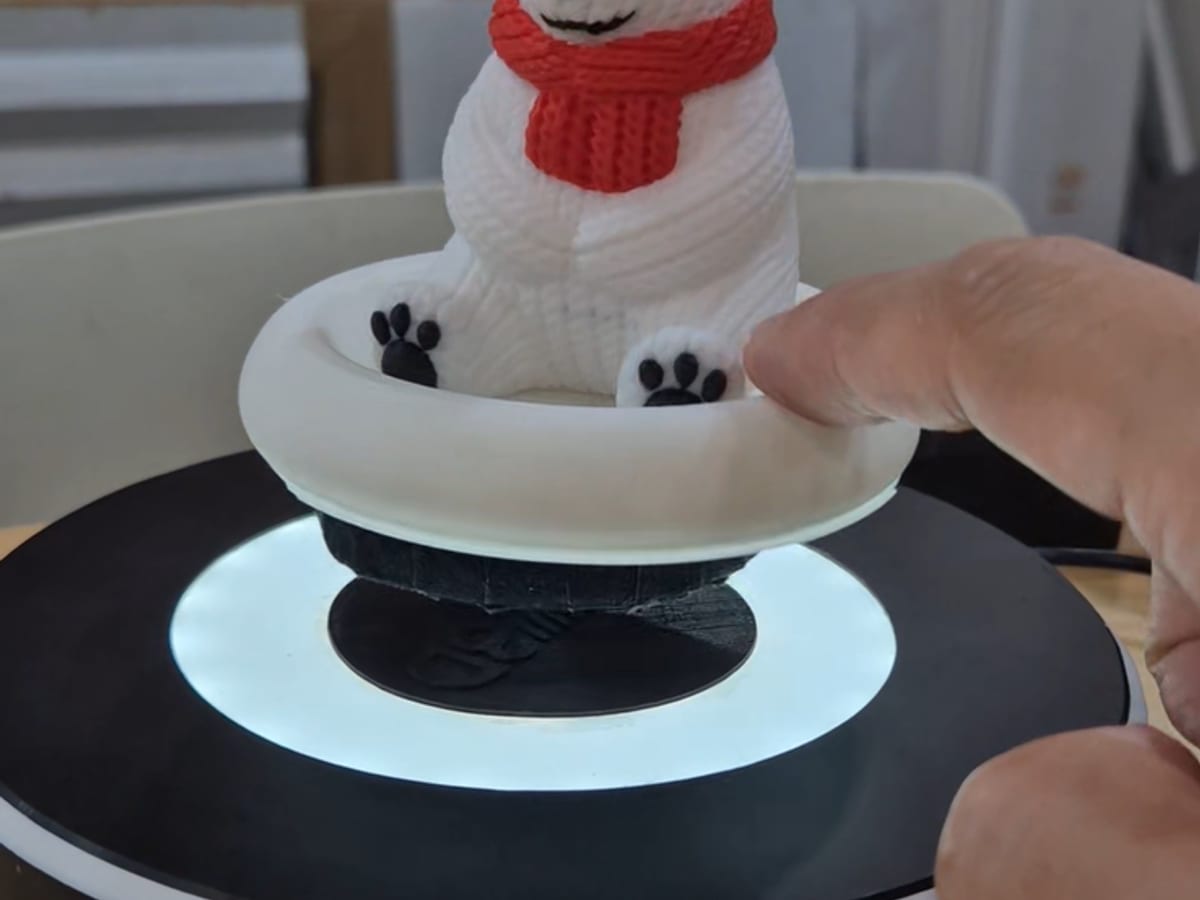
Magnetic levitation stand
FDM · PLA
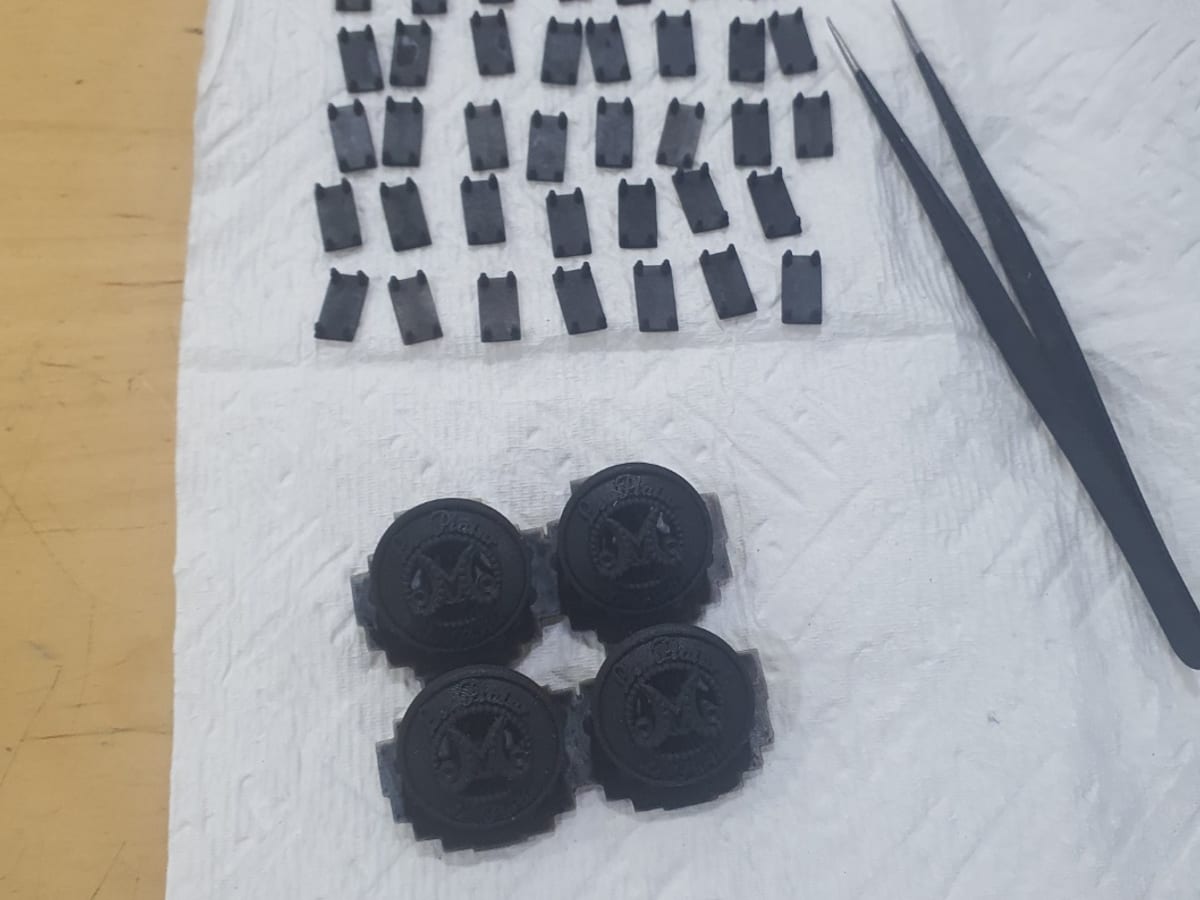
Garment buttons and jig
DLP · Black resin
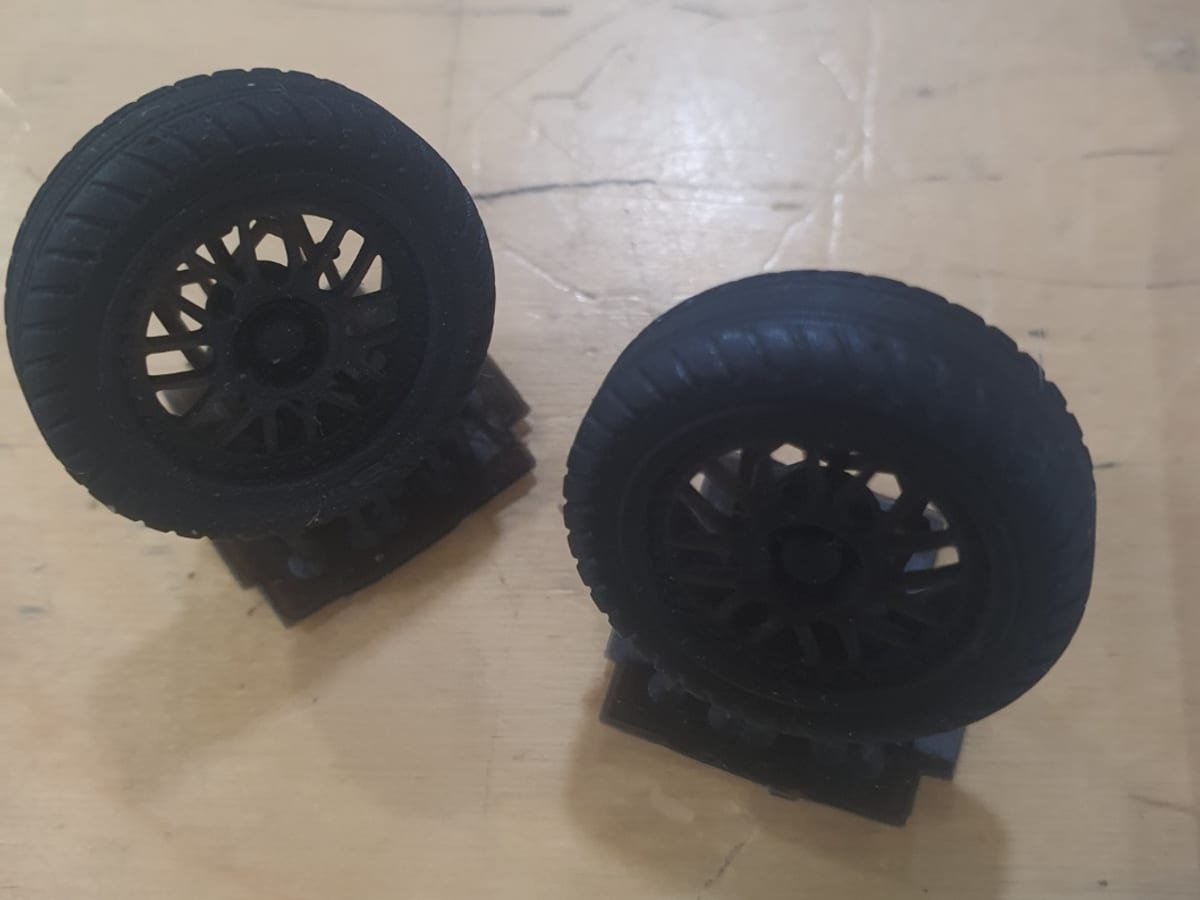
Scale model car tires
DLP · Flexible resin
High-contrast text, logos and icons, or SVG, look sharpest. Colour photos and gradients can become a solid blob—prefer white background with black lines.
AI 3D Maker is for planar silhouette extrusion (2.5D). For a solid mesh from a product photo, use photo → AI 3D on the live quote.
Yes—round and square badges and a Cherry MX 1U keycap style, with magnet, pin and MX stem mount options.
Use Name Tag Studio on /maker for text-first tags. Maker draw mode is for logo and sketch extrusion.
Yes. After checking the 3D result, save STL or request a quote to load it into the live quote, pick material and options, then order.